Skip to main content Skip to footer content

Transfer Plans

Step-by-Step Walkthrough for Students

About Transfer Plans

What is a Transfer Plan?

Transfer Plans is a feature in CUNY Transfer Explorer (T-Rex) that captures your long-term educational and career goals.

It was developed to help CUNY students like you, who are enrolled in an associate degree program, get and stay on the right path to a baccalaureate degree long before you actually transfer.

Why Submit a Transfer Plan?

Get Personalized Advice:
A Transfer Plan can facilitate more structured conversations – with an advisor or whomever you look to for advice – that take into account where you want to go by mapping out the steps to get you there.

Make Informed Choices:
Creating a Transfer Plan early in your college journey can help guide your course planning and college selection, minimizing time and money wasted on courses that might not transfer well to a baccalaureate degree.

Take Control of Your Journey:
Sometimes the mere act of writing something down makes it more real!

When should I submit a Transfer Plan?

Submit a Transfer Plan early, ideally in your first or second semester of your associate degree program, and use the other features in T-Rex to help you execute your plan.

What if my plans change?

We understand that plans can change. Update your plan as needed!

IMPORTANT

A Transfer Plan is NOT a transfer application and has no bearing on admissions. It’s a planning tool.
To complete a CUNY Transfer Application, visit the CUNY Admissions page

TIP

Not sure about a career or college? Select “Check here if you don’t know” where available, and discuss your options with an advisor.
You can update your plan anytime.

Ways to Log In

Option 1: Direct link

  1. Go to cuny.edu/transferplans.
  2. Click CUNY LOGIN CREDENTIALS.
  3. Sign in with your CUNY Login (SSO) when prompted.
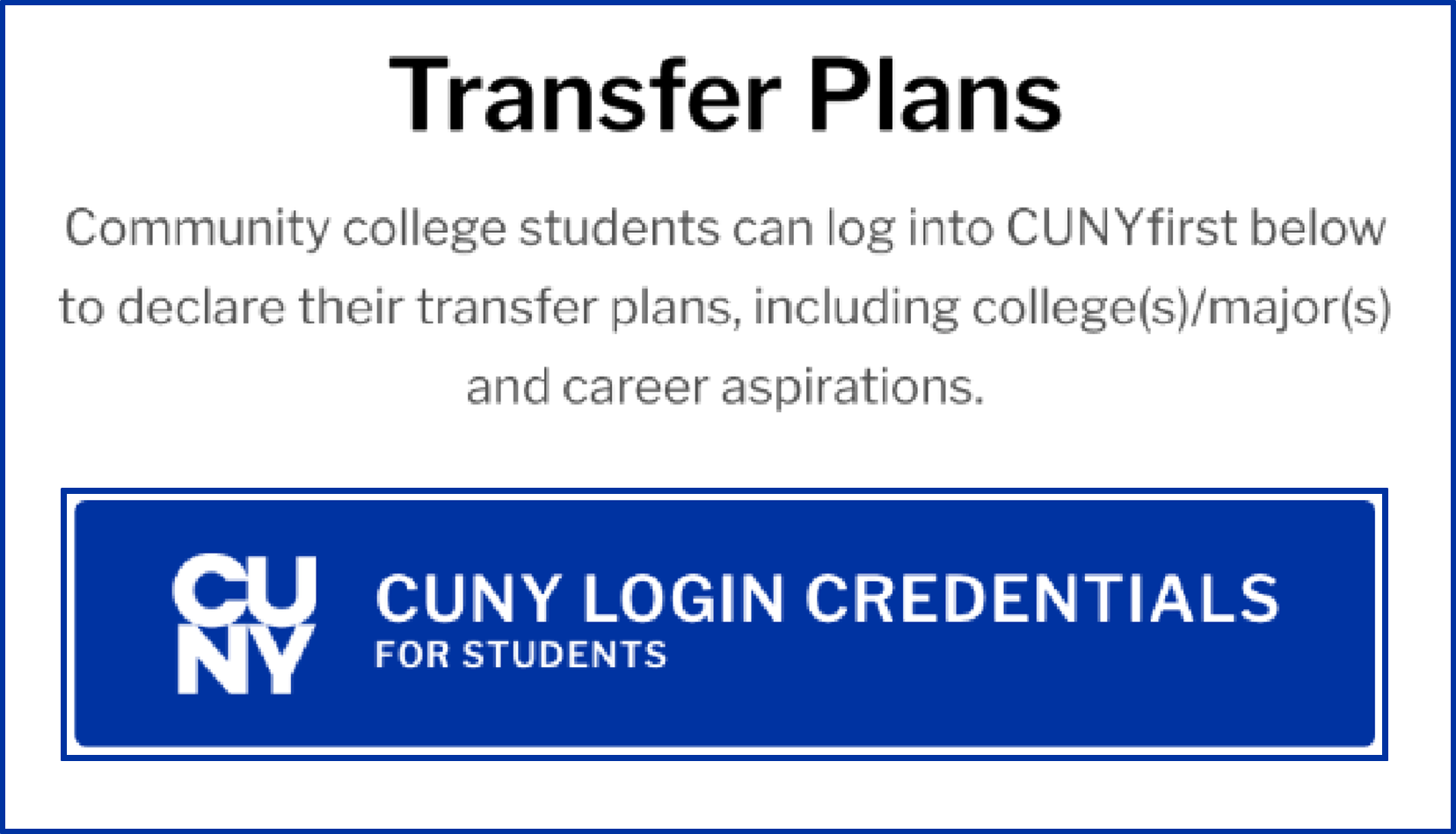
Screenshot of a part of the CUNYfirst login screen with grey instructional text and a blue button: Transfer Plans. Community college students can log into CUNYfirst below to declare their transfer plans, including college(s)/major(s) and career aspirations. CUNY LOGIN CREDENTIALS FOR STUDENTS.

Option 2: STUDENT menu

  1. Go to CUNY Transfer Explorer (T-Rex): cuny.edu/trex.
  2. Click LOGIN and sign in with your CUNY Login (SSO).
  3. Open STUDENT, then click Transfer Plans.
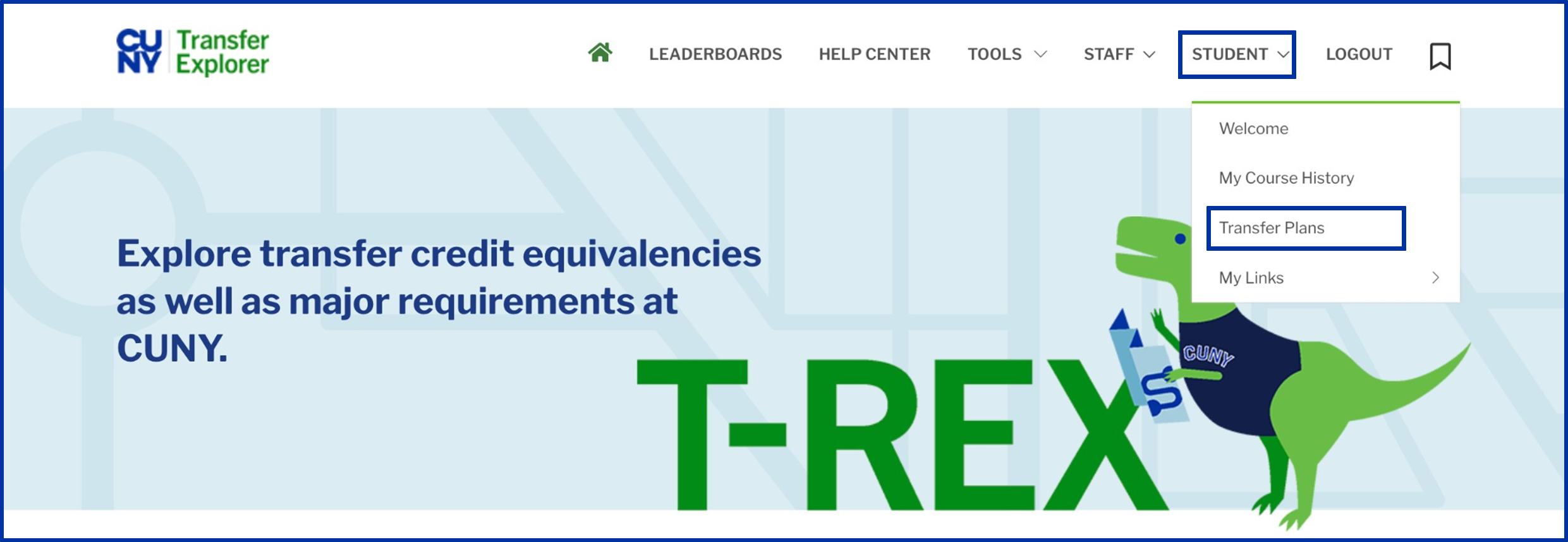
Screenshot of a the top of the Transfer Explorer homepage with the Student menu item circled on the main navigation and the Transfer Plans menu item circled on the dropdown menu.

Option 3: TOOLS menu

  1. Go to CUNY Transfer Explorer (T-Rex): cuny.edu/trex.
  2. Open TOOLS, then click the Transfer Plans link next to the lock icon.
  3. Sign in with your CUNY Login (SSO) when prompted.
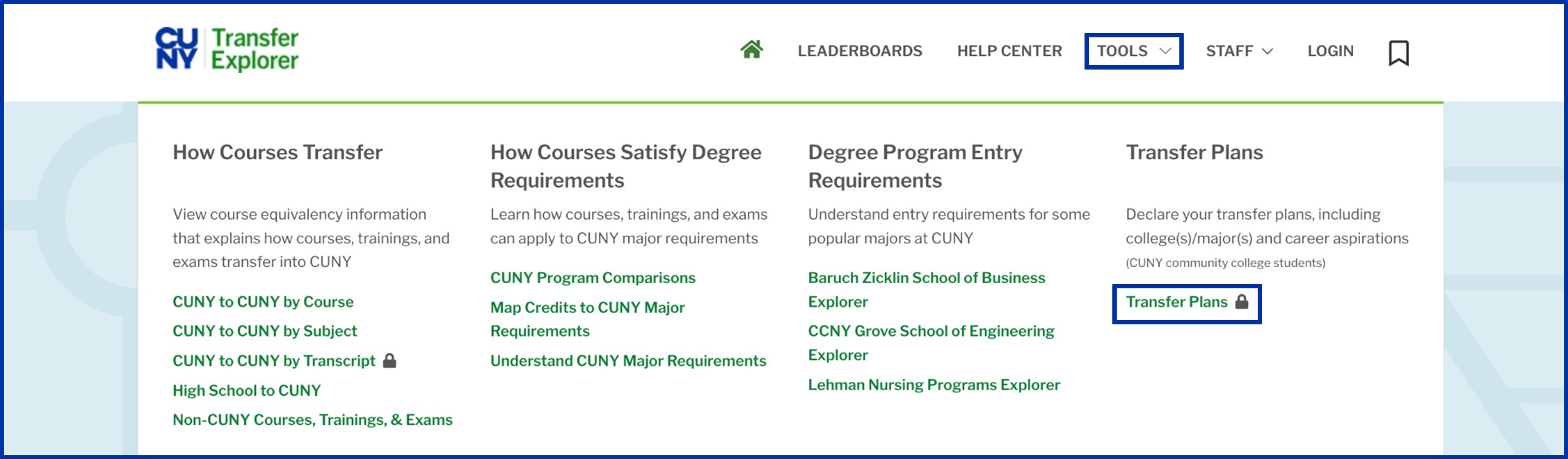
Screenshot of a the top of the Transfer Explorer homepage main navigation with Tools menu item highlighted and the Transfer Plans menu item circled on the descending dropdown.

Before You Begin

Transfer Plans landing page

Read the pop-up message, then click OK.
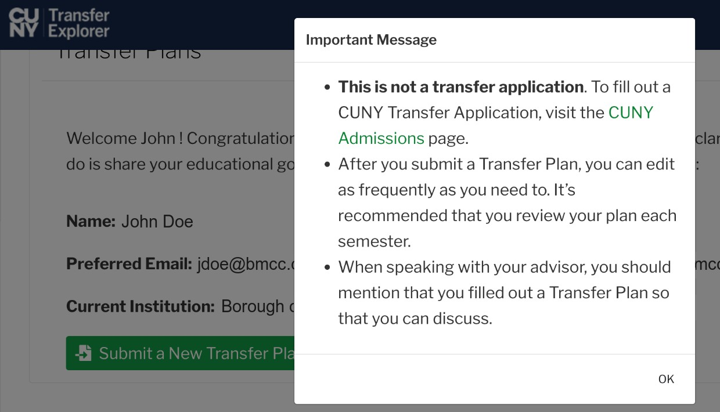
Screenshot of a popup over the Transfer Plans webpage: IMportant Message: This is not a transfer application. To fill out a CUNY Transfer Application, visit the CUNY Admissions page. After you submit a Transfer Plan, you can edit as frequesntly as you need to. It's recommended that you review your plan each semester. When speaking with your advisor, you should mention that you filled out a Transfer Plan so that you can discuss.

Step 1: Education

Select your education goal

Select the highest level of education you hope to attain.
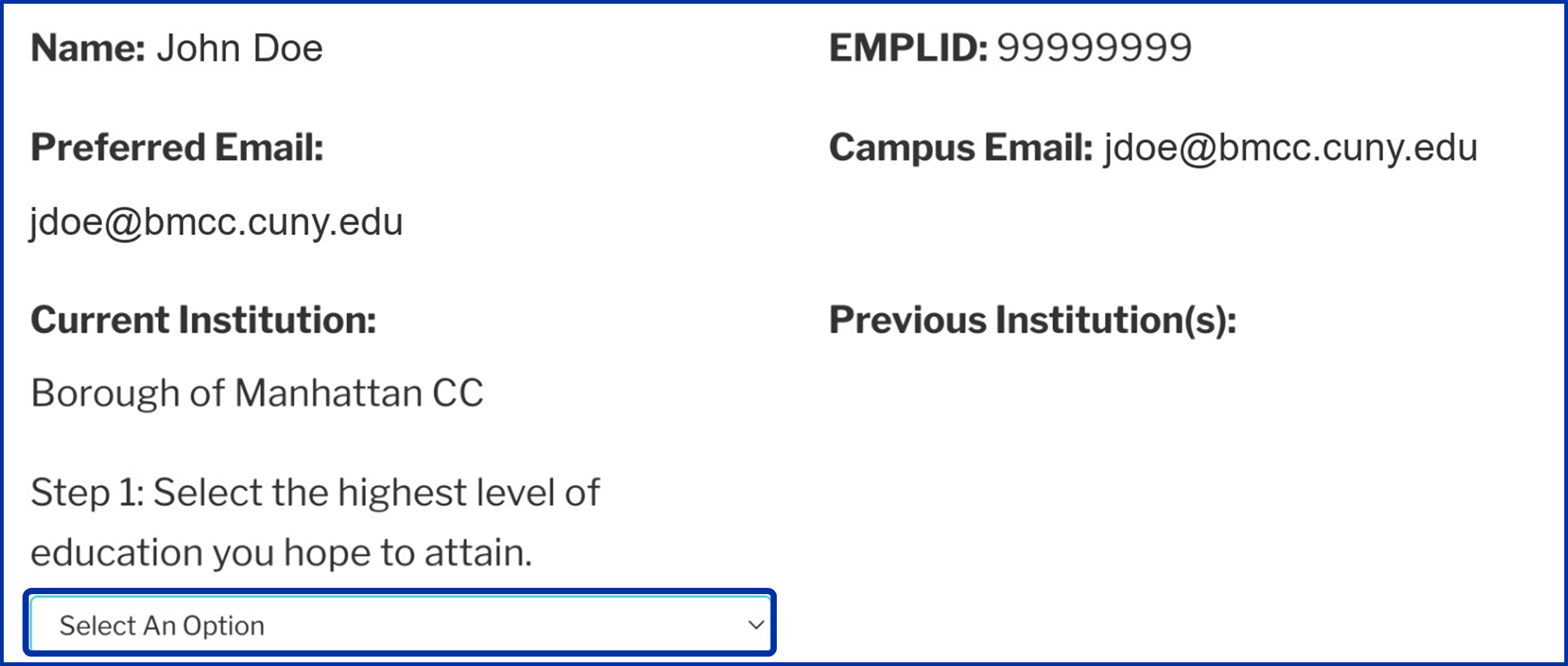
Screenshot of a sample student academic information page: Name: John Doe, EMPLID: 9999999, Preferred Email: jdoe@bmcc.cuny.edu, Campus Email: jdoe@bmcc.cuny.edu, Current Institution: Borough of Manhattan CC, Previous Institutions(s): blank, Step 1: Select the highest level of education you hope to attain followed by a closed dropdown with Select An Option menu item highlighted.

Step 2: Careers

Select potential career goals

  • You can choose up to 3 careers.
  • The career selection also allows for free form typing to indicate something that does not show up as an option.
  • Select "Check here if you don't know" if you are unsure which career to pursue.
Screenshot of a sample student academic information page: Name: John Doe, EMPLID: 9999999, Preferred Email: jdoe@bmcc.cuny.edu, Campus Email: jdoe@bmcc.cuny.edu, Current Institution: Borough of Manhattan CC, Previous Institutions(s): blank, Step 1: Select the highest level of education you hope to attain followed by a closed dropdown with Bachelors menu item selected. Step 2: Select upt o three career(s) you wish to pursue. If you do not see your chosen career, you can manually type it. A text box with Select up to three careers instructional text and a checkbox underneath labeled Check here if you don't know.

Step 3: Majors & Colleges

Select potential majors and colleges

Click Add in Step 3 to open the program and college pop-up.

You can add up to four entries.
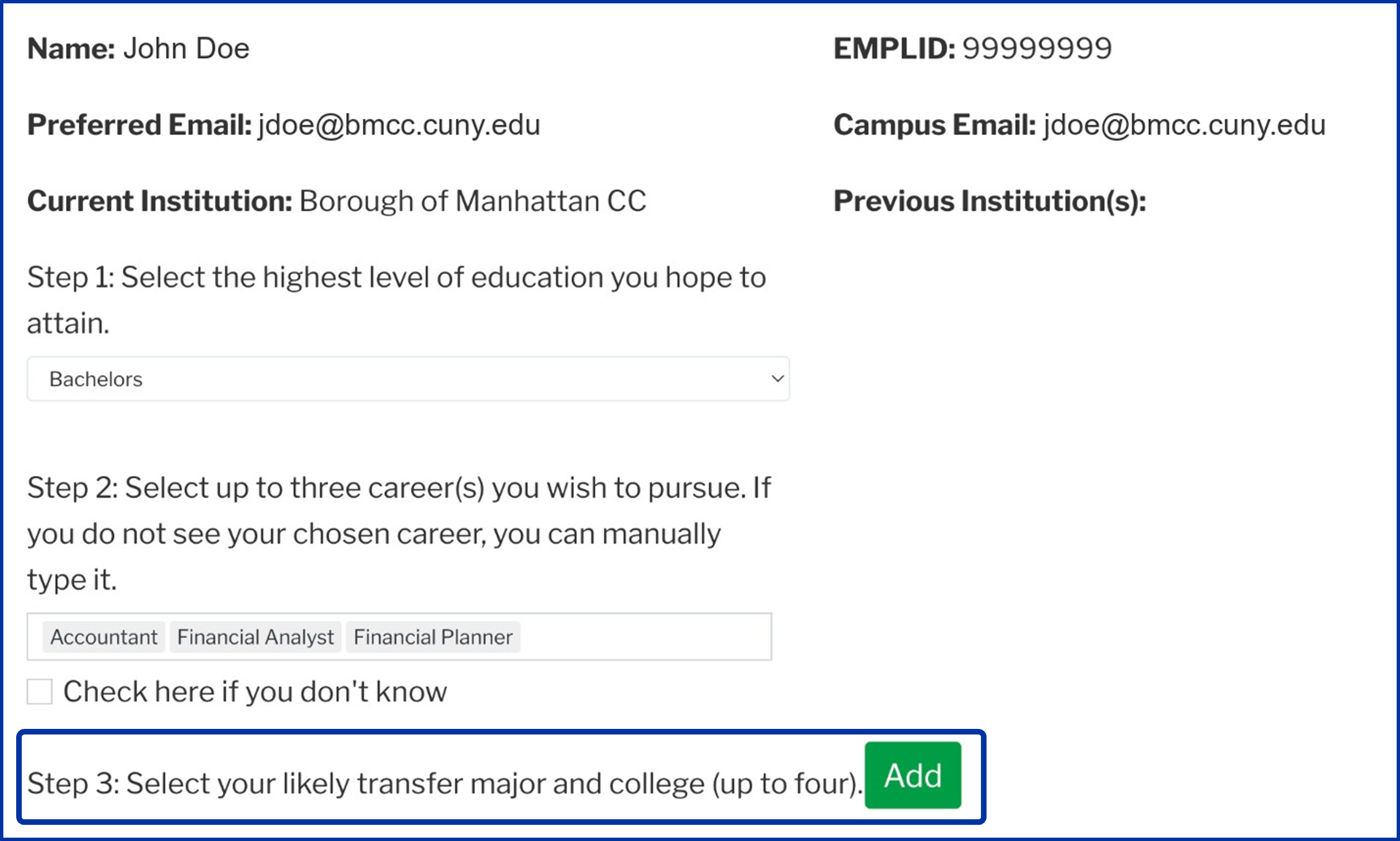
Screenshot of a sample student academic information page: Name: John Doe, EMPLID: 9999999, Preferred Email: jdoe@bmcc.cuny.edu, Campus Email: jdoe@bmcc.cuny.edu, Current Institution: Borough of Manhattan CC, Previous Institutions(s): blank, Step 1: Select the highest level of education you hope to attain followed by a closed dropdown with Bachelors menu item selected. Step 2: Select upt o three career(s) you wish to pursue. If you do not see your chosen career, you can manually type it. A text box with Accountant, Financial Analyst, and Financial Planner entered and a checkbox underneath labeled Check here if you don't know. Underneath that is Step 3: Select your likely transfer major and college (up to four) with a green button labelled Add.

Select and save your first entry

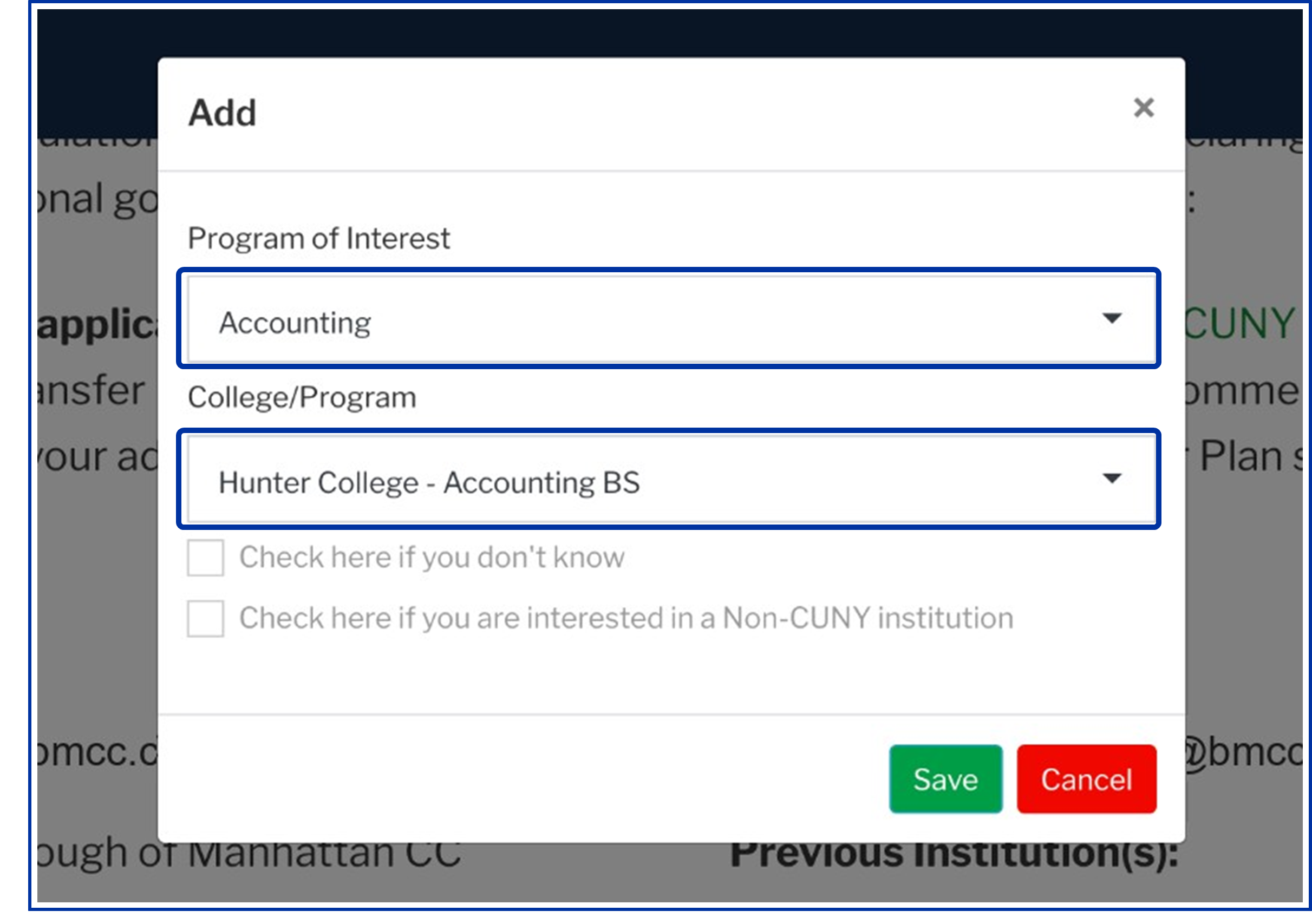
Select Program of Interest and College/Program, then click Save
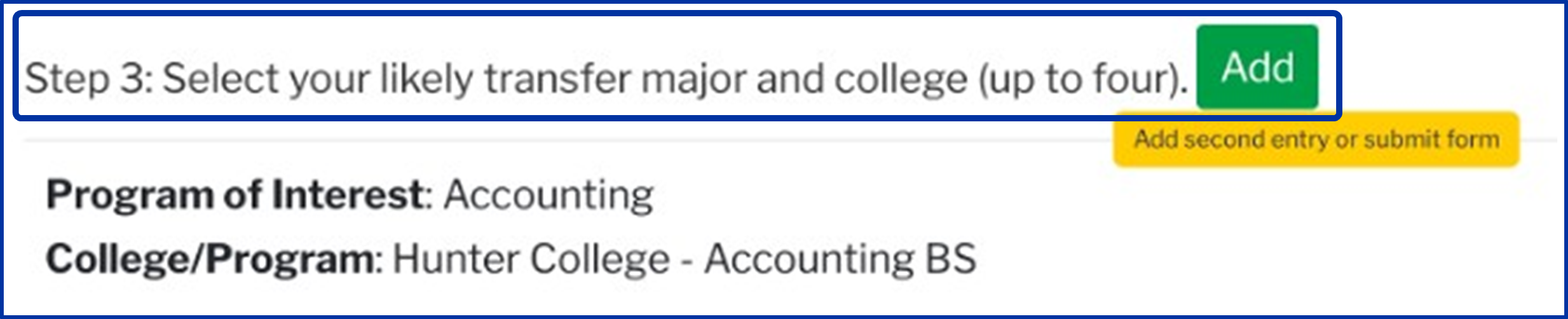
Screenshot of a sample student academic information page: Step 3: Select your likely transfer major and college (up to four) with a green button labelled Add; a yellow button labelled Add second entry or submit form. Program of Interest: Accounting; College/Program: Hunter College - Accounting BS
Screenshot of a popup over the sample student academic information page:  Add: Program of Interst dropdown with Accounting selected, College/Program dropdown menu with Hunter College - Accounting BS selected, underneath unchecked and greyed out two checkboxes labelled Check here if you don't know and Check here if you are interested in a Non-CUNY institution.

Add another entry (optional)

Click Add again to add another program and college. (You can add up to four.)

Submit Your Plan

Review and submit your plan

Review your education goal, careers, programs, and colleges.

You can submit after adding one entry or add more, up to four.

When you are ready, click Submit Form.
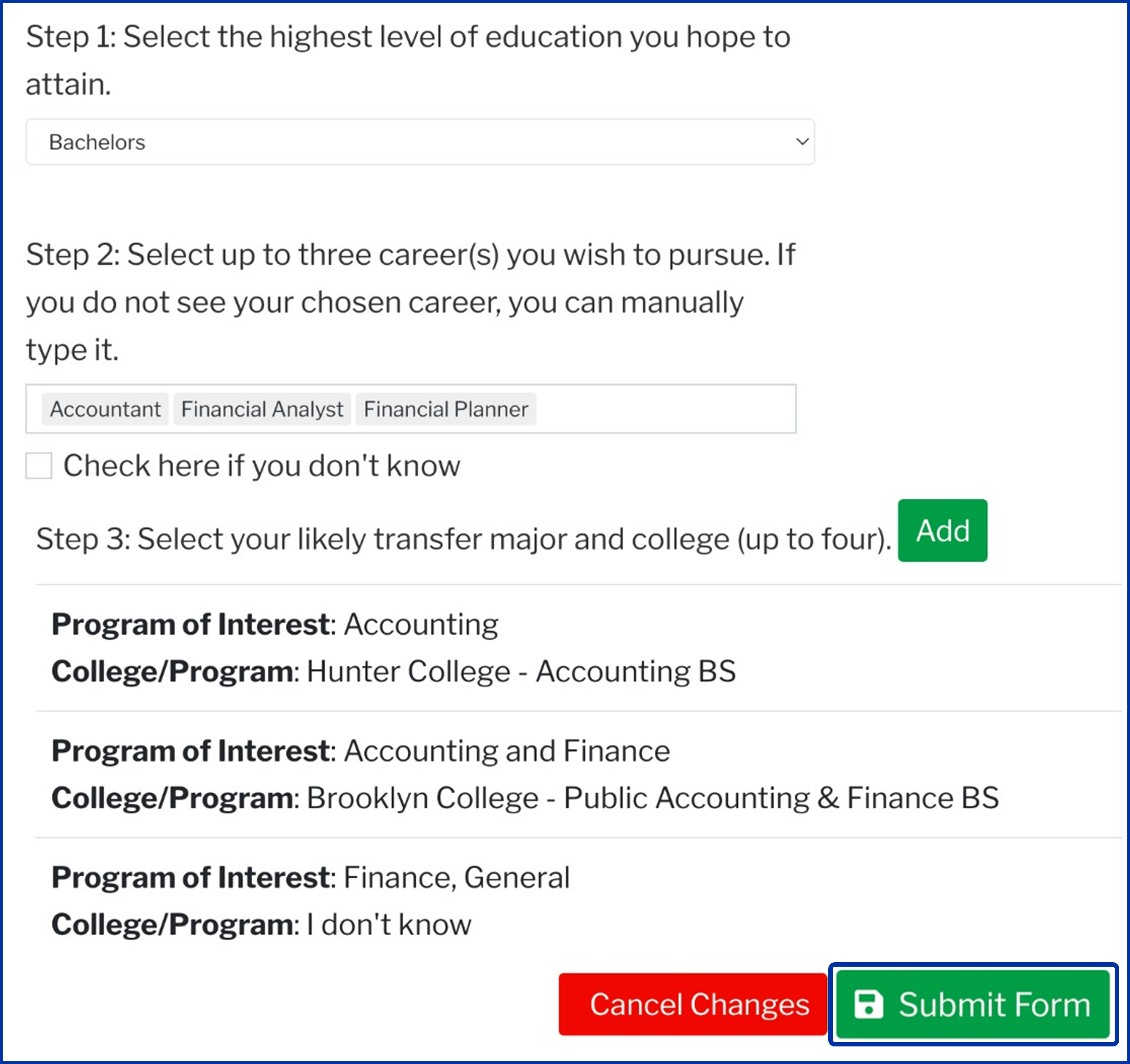
Screenshot of a popup over the sample student academic information page: Step 1: Select the highest level of education you hope to attain followed by a closed dropdown with Bachelors menu item selected. Step 2: Select up to three career(s) you wish to pursue. If you do not see your chosen career, you can manually type it. A text box with Accountant, Financial Analyst, and Financial Planner entered and a checkbox underneath labeled Check here if you don't know. Underneath that is Step 3: Select your likely transfer major and college (up to four) with a green button labelled Add. Program of Interest: Accounting; College/Program: Hunter College - Accounting BS. Program of Interest: Accounting and Finance, College/Program: Brooklyn College - Public Accounting & Finance BS. Program of Interest: Finance, General, College/Program: I don't know. Red button labelled Cancel Changes, green button labelled Submit Form.

Confirm your submission

In the Save Transfer Plan? pop-up, click Yes.
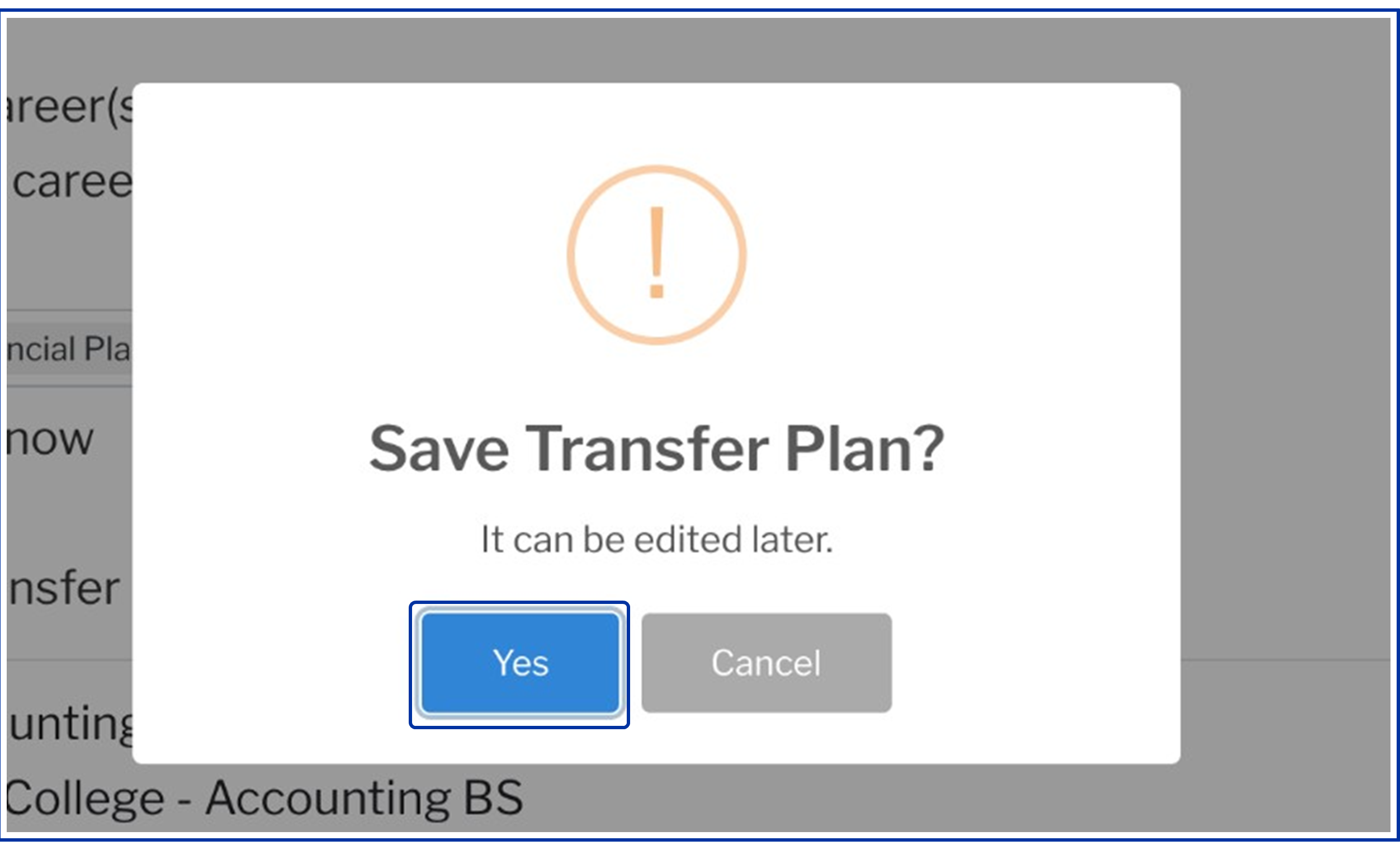
Screenshot of a popup over the sample student academic information page:  Save Transfer Plan? It can be edited later. A blue button: Yes, next to it a grey button Cancel

Your submitted plan will appear next.

After You Submit

Your submitted Transfer Plan

Your plan is saved. Review your choices and the available green links.
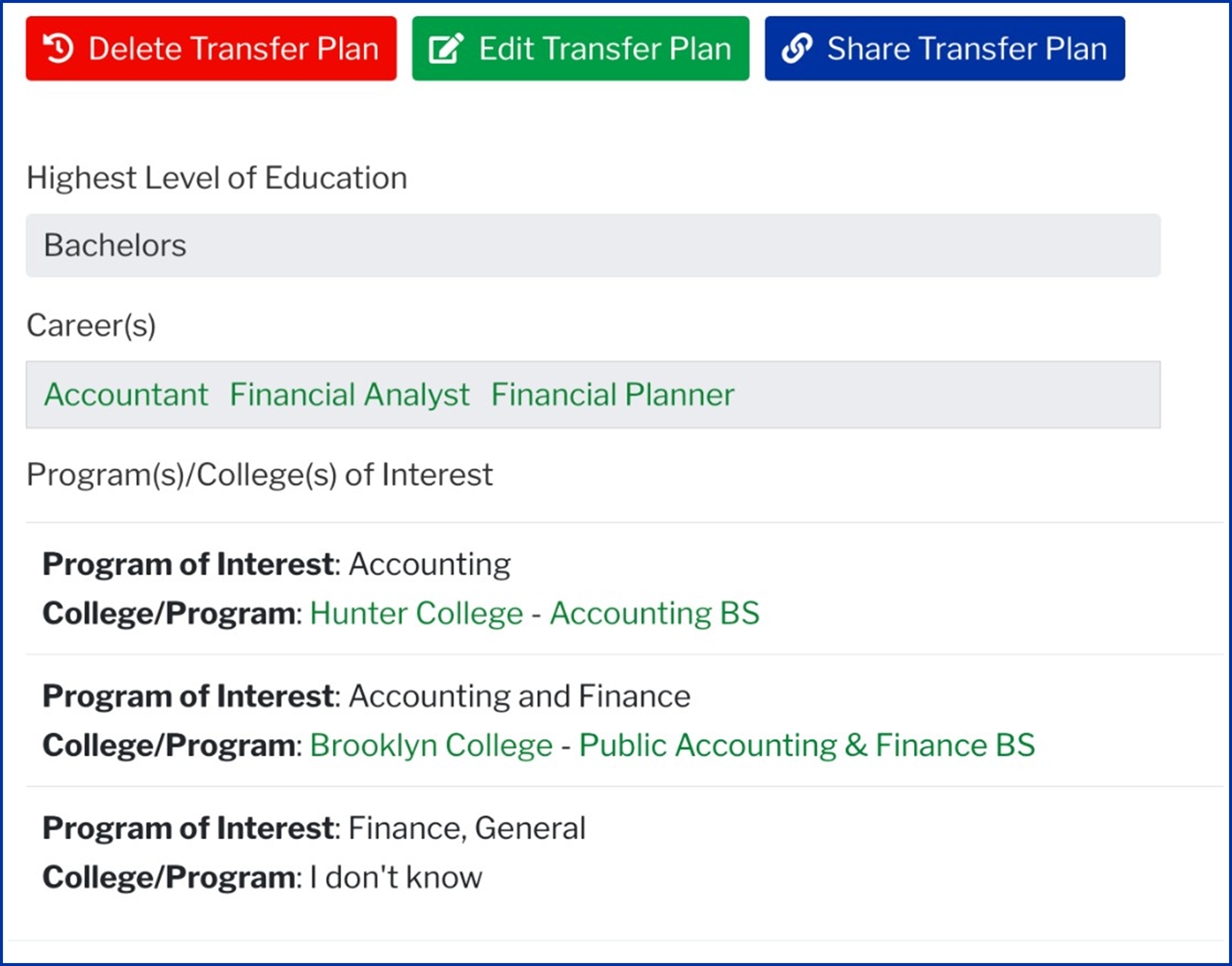
Screenshot of the submitted Transfer Plan: three button across the top: red button: delete Transfer Plan, green button: Edit Transfer Plan, blue button: Share Transfer Plan. Highest level of education: Bachelors; Career(s): Accountant, Financial Analyst, and Financial Planner. Program(s)/College(s) of Interest: Program of Interest: Accounting; College/Program: Hunter College - Accounting BS. Program of Interest: Accounting and Finance, College/Program: Brooklyn College - Public Accounting & Finance BS. Program of Interest: Finance, General, College/Program: I don't know.

Keep Your Plan Current

Delete, edit, and share your plan

Use these buttons on your submitted plan:

Screenshot of the submitted Transfer Plan: three button across the top: red button: delete Transfer Plan, green button: Edit Transfer Plan, blue button: Share Transfer Plan.
  • Delete Transfer Plan: remove your current plan to submit a new plan.
  • Edit Transfer Plan: update your choices, then save your changes.
  • Select "Check here if you don't know" if you are unsure which career to pursue.
  • Share Transfer Plan: share your plan with an advisor or someone supporting your transfer planning.

IMPORTANT

Your Transfer Plan is deactivated when you submit a CUNY transfer application.

Your Confirmation Email

Check your confirmation email
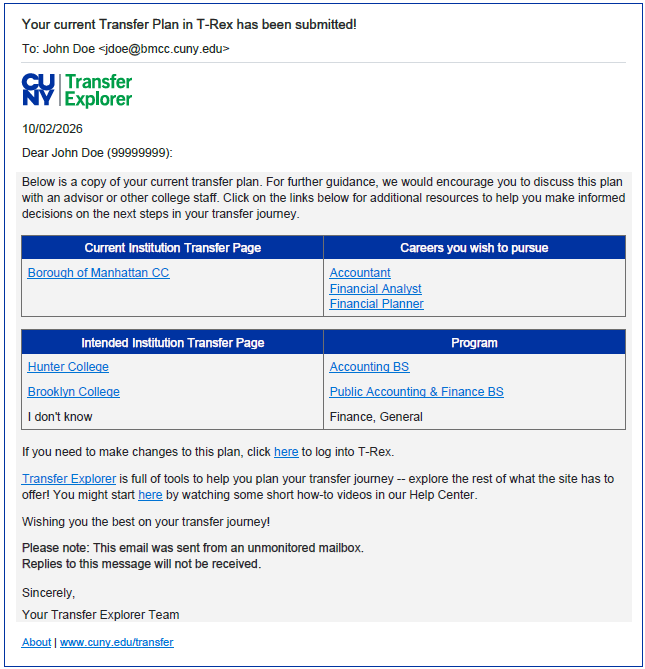
Screenshot of a confirmation email sample containing all of the John Doe information from above and the following text: Email subject: Your current Transfer Plan in T-Rex has been submitted! Body text: 10/02/2026 Dear John Doe (99999999): Below is a copy of your current transfer plan. For further guidance, we would encourage you to discuss this plan with an advisor or other college staff. Click on the links below for additional resources to help you make informed decisions on the next steps in your transfer journey. Current Institution Transfer Page Careers you wish to pursue Borough of Manhattan CC Accountant Financial Analyst Financial Planner Intended Institution Transfer Page Program Hunter College Accounting BS Brooklyn College Public Accounting & Finance BS I don't know Finance, General If you need to make changes to this plan, click here to log into T-Rex. Transfer Explorer is full of tools to help you plan your transfer journey -- explore the rest of what the site has to offer! You might start here by watching some short how-to videos in our Help Center. Wishing you the best on your transfer journey! Please note: This email was sent from an unmonitored mailbox. Replies to this message will not be received. Sincerely, Your Transfer Explorer Team About | www.cuny.edu/transfer.

Complete a Transfer Plan today to inform your Academic Advisor of your transfer plans.