
KBCC Student Email
How to Access Your KBCC Student Email Account

Using your CUNY credentials
CUNY Login: ____________________________________________##@LOGIN.CUNY.EDU
FirstName.LastName##
(Note: ## represents the last two numbers of your EMPLID. For example: Taylor.Bellamy12)
Password: ____________________________________________________
KCC Student Email Address
___________________________________##@STU-MAIL.KBCC.CUNY.EDU
FirstName.LastName##
(Note: ## represents the last two numbers of your EMPLID. For example: Bellamy.Taylor 21)

STUDENT HELP DESK
Library Rooms: L-104, L-105, L-107, L-108
Hours: Monday - Thursday 8 AM - 6 PM, Friday 8 AM - 5 PM, Saturday 10 AM - 12 PM
MAC Building Room: M-224
Hours: Monday - Friday 9 AM - 5 PM
Phone: 1-718-368-6679 Email: helpdesk@stu-mail.kbcc.cuny.edu
KCC Student Email using Microsoft Authenticator
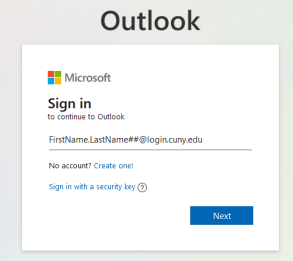
- In a browser window, go to https://www.outlook.com
- Sign in with your CUNY Login (FirstName.LastName##@login.cuny.edu)
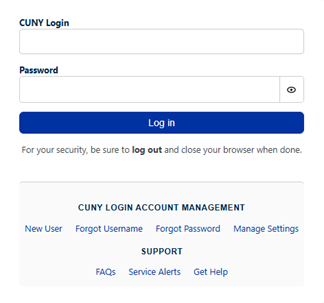
- CUNY Login page: Enter your CUNY Login credentials you would use to access CUNYfirst,
Brightspace, Navigate360, etc.
- You will be prompted to set up your Authenticator App.
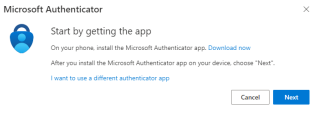
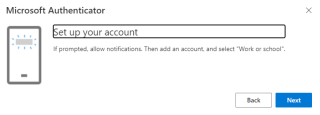
- Go to the Google Play Store or Apple App Store and download the Microsoft Authenticator app.
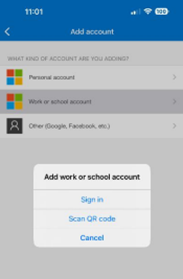
- Launch the Authenticator app, press the + icon in the top right corner and select
“Work or school account”, followed by “Scan QR code”, and scan the code presented
on your desktop.
- Your MFA setup is complete. Whenever you log into your CUNY account on an unfamiliar
device, you will receive a notification from the Microsoft Authenticator app to approve
your login. You can authenticate a device for up to 14 days.
If you have any issues or questions, please call our Student Helpdesk at 1-718-368-6679 or send an email to helpdesk@stu-mail.kbcc.cuny.edu
CUNY Microsoft Outlook Mobile Guide
Note: If you haven’t completed Multi-Factor Authentication setup, please refer to KCC Student Email using Microsoft Authenticator guide before setting up Outlook on your mobile device.
- On your mobile device, go to either to the Apple App Store or Google Play Store, and download Microsoft Outlook:

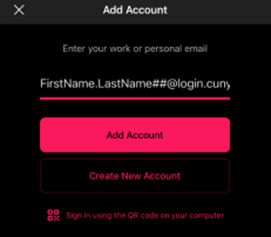
- If this is your first time using the Outlook app, enter your CUNY Login credentials
when prompted to add account. If you already have an email account added, go to Settings
within the Outlook app, and select “Add Mail Account".
- You will be redirected to the Microsoft Authenticator to complete your login. If you
are presented with a code, rather than an automatic redirect, enter the code in the
Authenticator app when prompted.
If you have any issues or questions, please call our Student Helpdesk at
1-718-368-6679 or send an email to helpdesk@stu-mail.kbcc.cuny.edu