Class Permission Request
The Registration Help Center Class Permission Request Form is for students who are receiving errors when trying to register for classes they should be qualified* for. Simply fill out the form, and a Help Center representative will get back to you as soon as possible.
*Qualified students typically receive one of the following error messages:
- Unable to add this class - requisites have not been met.
- You have already taken this class.
- Multiple enrollment for this class is not allowed.
- Adding this class would exceed your course limit for this session
- Maximum Session Unit Load Exceeded
- You have been given a grade of W/WD/WN for this class
There are several error messages we cannot assist with:
| Error | Possible Resolution |
|---|---|
| You have a hold on your record |
Please contact the department responsible for the hold, e.g. Advisement, Registrar, or Bursar. |
| Department permission required |
Please contact the academic department directly. |
| Class is full. |
Please choose a different section, we cannot add seats to classes. |
| You are not eligible to enroll for this term. |
Please contact the Registrar. You likely need to readmit. |
| You have been withdrawn from the term. |
After withdrawing all classes in a session, you must readmit to the college to continue your education. |
| A scheduling conflict exists with a currently enrolled class. |
Please choose a different section. |
Using the Form
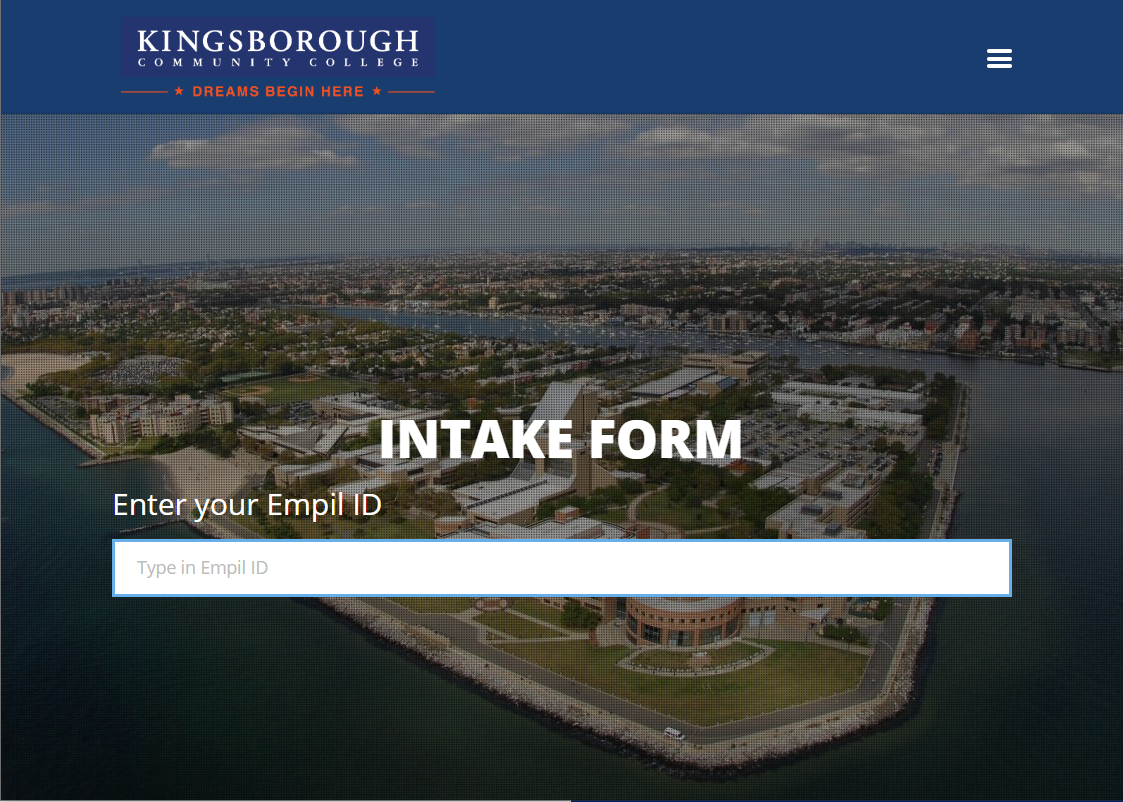
Step One: Begin with your 8-digit EmplID
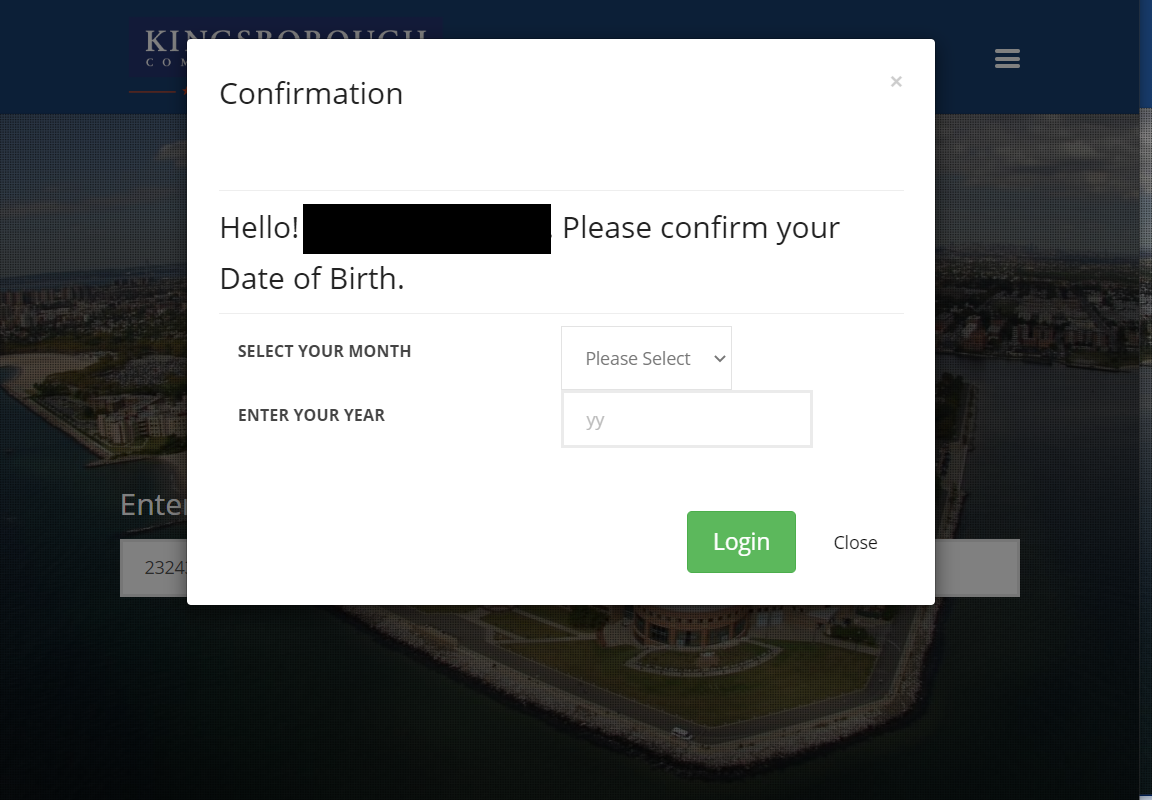
Step Two: Verify your Birth Year information
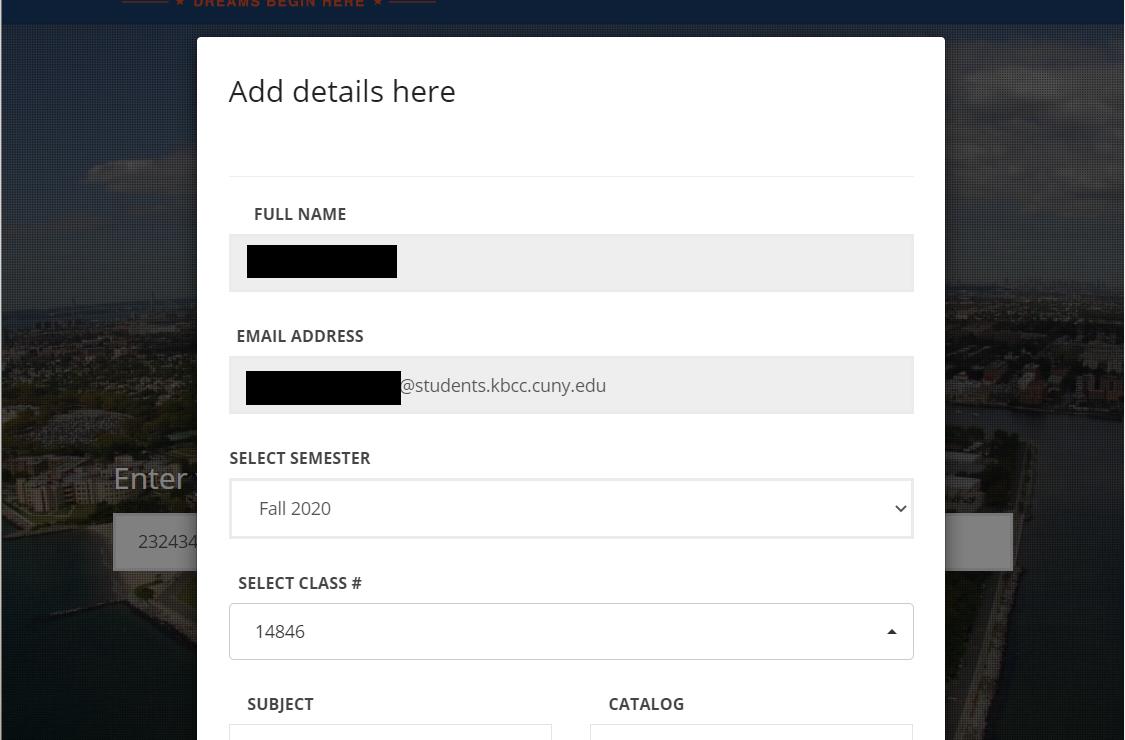
Step Three: Select the Semester and Class Number in question
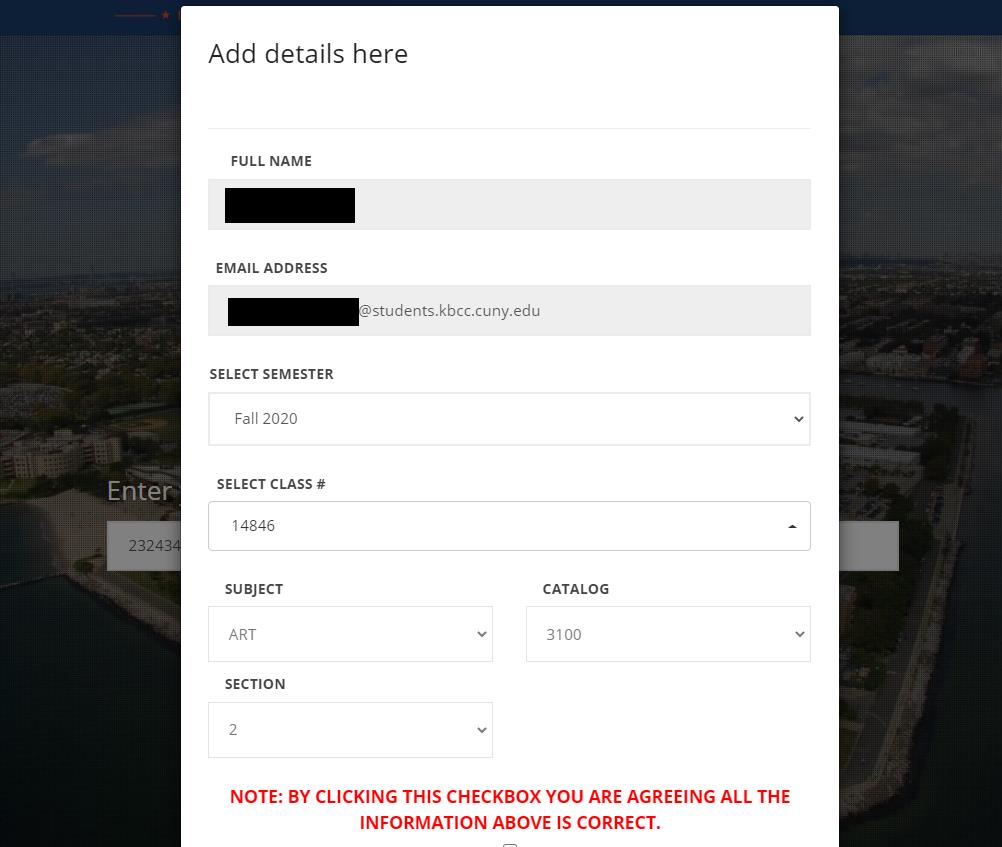
Step Four: Verify Class information and submit